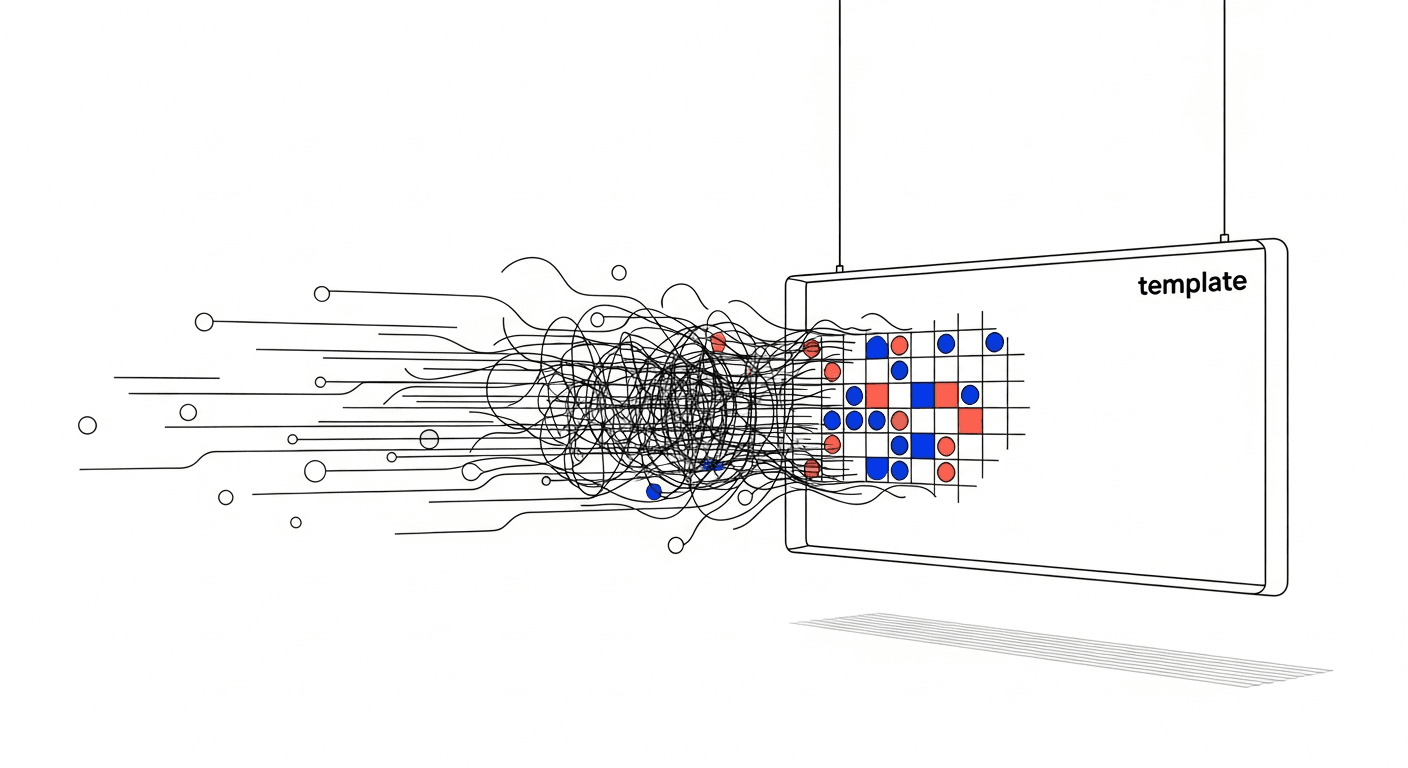
The Ultimate Guide to Recurring Invoices: How to Set Them Up
Still sending manual invoices? Stop wasting time. Learn how setting up recurring invoices boosts cash flow and automates your billing process instantly.
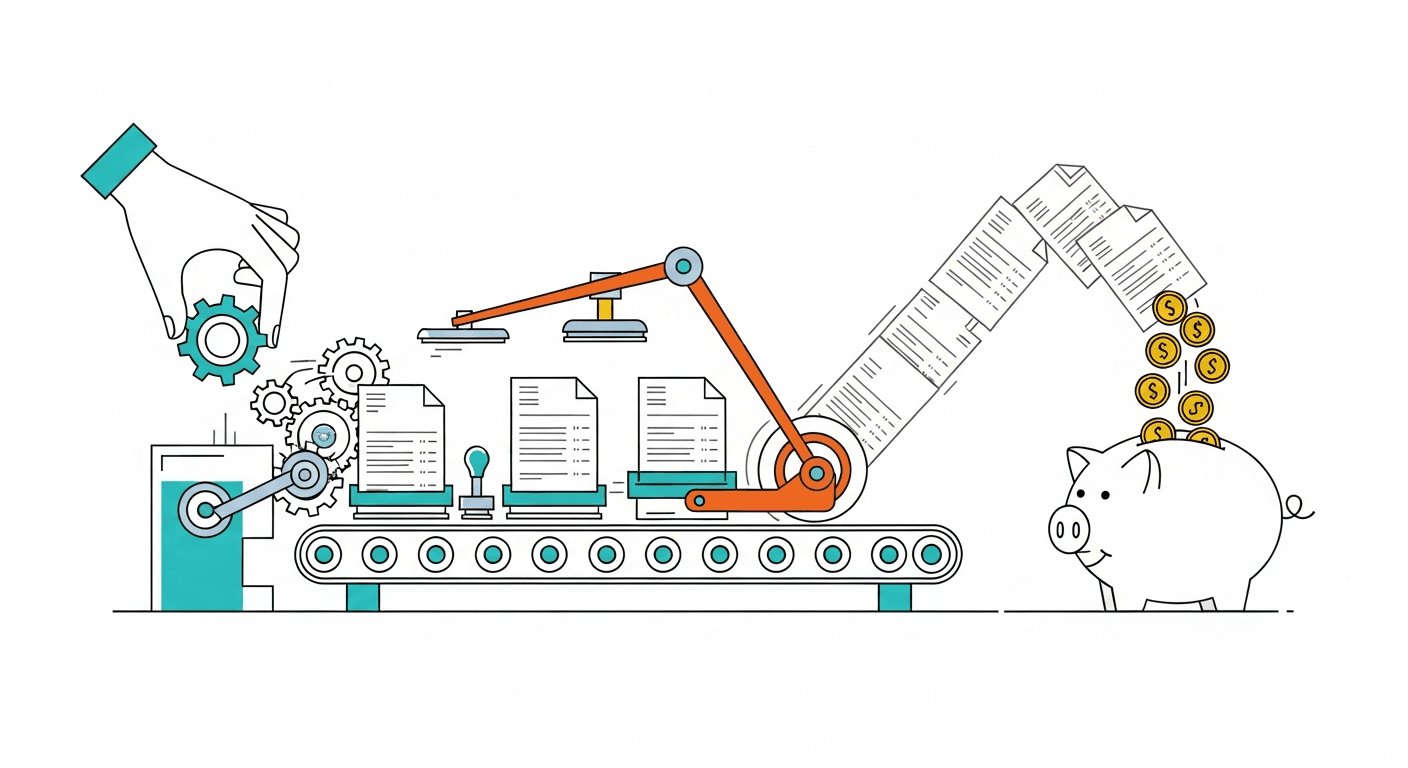
It’s 4:45 PM on a Friday. You’ve mentally checked out. You’re ready to close your laptop, grab a cold beverage, and pretend you don’t have responsibilities for 48 hours.
But then, a cold realization washes over you like an unexpected splash of water from a passing bus: tomorrow is the first of the month.
That means you have ten, maybe twenty invoices to manually generate, triple-check for typos, and email out to your retainer clients. Suddenly, your weekend plans are being held hostage by a spreadsheet.
Sound familiar? Of course it does. We’ve all been there.
In the business world, manual repetition is the enemy. Enter the holy grail of cash flow management: Recurring Invoices.
Recurring invoices are the "set it and forget it" rotisserie chicken of the financial world. They are automatically generated and sent to customers at regular intervals—weekly, monthly, annually—forming the backbone of the subscription economy.
In this guide, we’re going to deep-dive into recurring invoices: how to set them up, why they are critical for your sanity (and bottom line), and the specific steps to get them running on popular platforms. Plus, we’ll look at how AI-driven tools like InvoiceCave are taking this automation to the next level.
Buckle up. We’re about to make billing boring again (in the best way possible).
Why Recurring Invoices Matter
Before we get into the "which button do I click" section, let’s talk about the "why." Automating your billing isn't just about laziness (though I am a huge proponent of strategic laziness); it is essential for scaling your business efficiency.
1. Consistent Cash Flow
Cash flow is the lifeblood of any business. Without it, you're just a person with a hobby and a lot of debt. Research shows that for small businesses, late payments are the leading cause of "staring at the ceiling at 3 AM."
By automating your invoices, you ensure they arrive in the client's inbox at the exact same time every cycle. Consistency in billing breeds consistency in payment. Train your clients like Pavlov’s dogs—bell rings, invoice arrives, payment sends.
2. Eliminating Human Error
When you manually copy-paste data from last month’s invoice to this month’s, you invite chaos. A typo in the date, a forgotten zero, or an incorrect tax calculation can look unprofessional.
If you struggle with the math, you should be using a Sales Tax Calculator to ensure accuracy. Worse, a mistake gives the client a valid excuse to delay payment while you "fix the glitch." Recurring invoices use a verified template that replicates itself without your intervention. Robots don’t make typos; they just eventually take over the world. But until then, let's use them for math.
3. Saving Precious Time
It might take you 10 minutes to draft and send an invoice using a standard Free Invoice Generator. If you have 20 recurring clients, that’s over three hours a month—or nearly an entire work week per year—spent just on data entry.
That is a week of your life you are never getting back. Recurring invoices save time that you can reinvest into sales, marketing, or actually doing the work you’re paid for (or, let's be honest, scrolling TikTok).
The Universal Workflow: How Recurring Invoices Work
Regardless of which platform you use, the logic behind setting up recurring billing remains consistent. Think of it as the "Circle of Life," but for money.
Most systems operate on a set of logic that looks like this:
- The Trigger: The schedule (e.g., "The 1st of every month," aka "Payday").
- The Action: Create an invoice based on "Template A" (The one you made perfect once).
- The Delivery: Email the invoice to "Client B."
- The Payment: Optionally, auto-charge a credit card on file (The dream scenario).
Key Features to Look For:
- Customer Management: You need the ability to select from existing customers or add new ones without pulling your hair out.
- Flexible Scheduling: Can you bill weekly? Quarterly? Can you set the invoice to go out 3 days before the due date? Flexibility is key.
- The "Oops" Button (Editing/Control): If a client cancels, you need to be able to pause or delete the template immediately. No one likes a zombie invoice that keeps coming back from the dead.
- Draft Management: Platforms like QuickBooks allow you to save recurring invoices as drafts first. It’s like a safety net for your anxiety, letting you review them before they fly out the door.
Recurring Invoices: How to Set Them Up (Platform Guides)
Because every business uses a different "tech stack" (fancy word for "collection of apps"), let’s look at the specific workflows for three major players: QuickBooks Online, Stripe, and Autobooks.
1. How to Set Up Recurring Invoices in QuickBooks Online
QuickBooks Online (QBO) is the grandfather of accounting software. It’s reliable, it’s everywhere, and it has a "Recurring Transactions" dashboard that is surprisingly robust.
The Step-by-Step Process:
- Access Settings: Log into your dashboard and click the gear icon in the top right corner. (It’s always a gear icon, isn’t it?)
- Navigate to Recurring Transactions: From the dropdown menu, select "Recurring Transactions."
- Create New: Click the "New" button. You will be asked to select the transaction type—choose "Invoice."
- Select Template Type: QBO offers three flavors here:
- Scheduled: The system creates and sends it. True automation.
- Reminder: The system nudges you to create it. Good for control freaks.
- Unscheduled: A saved template you use on demand.
- Configure Details: Name your template (e.g., "Smith Co Monthly Retainer"). Select the customer, set the interval, and choose the start date.
- Set Optional Parameters:
- End Date: Crucial if the contract is only for 6 months. Do not skip this unless you want to bill them forever.
- Auto-Email: Check "Automatically send emails" if you want the hands-off experience.
- Fill Invoice Content: Enter the product/service details, quantity, rate, and tax info.
- Enable Online Payments: If you use QuickBooks Payments, check the boxes for credit card or bank transfer so the client can pay instantly.
- Save: Click "Save Template."
Pro Tip: Check your recurring transactions list periodically. QBO lets you edit, pause, or nuke these templates at any time.
2. How to Set Up Recurring Invoices in Stripe
Stripe is the cool kid on the block. It’s built for the internet, SaaS companies, and digital agencies. They prefer the term "Subscriptions" over recurring invoices, but a rose by any other name still collects money.
The Step-by-Step Process:
- Log In: Go to your Stripe Dashboard and click "Billing" in the left-hand panel.
- Initiate Subscription: In the Invoices section, click "Create" and then select "Create subscription."
- Customer Details: Enter the customer's info. If they’ve paid you before, Stripe probably remembers them better than you do.
- Payment Method: This is where Stripe shines. You can auto-charge a card on file. This transforms a "recurring invoice" into a "recurring payment." (Cha-ching).
- Add Products: Select your product or service. You may need to create a "Product" in Stripe first with a defined price (e.g., "$99/month").
- Configure Settings: Set your due dates, tax rates, and any promotional discounts.
- Preview: Always preview. Always.
- Finalize: Start the subscription.
Tracking: Use the Stripe Dashboard to see if an invoice is "Sent," "Paid," or "Overdue" (boo!).
3. How to Set Up Recurring Invoices in Autobooks
Autobooks is often baked right into your banking app, making it the convenient option for those who like to keep their money and their invoices in the same room.
The Step-by-Step Process:
- Access Invoicing: From your banking dashboard, click "Send an invoice" or navigate to "Autobooks" > "Invoicing."
- Start New Recurring Invoice: Find the button that says "New recurring invoice." Click it with confidence.
- Customer Info: Enter your customer's name. It usually auto-saves as a draft, which is nice.
- Set Schedule: Choose your frequency (Weekly, Bi-weekly, Monthly—dealer’s choice).
- Start Date & Terms: Select when the first invoice goes out and define terms (e.g., Net 15, Net 30).
- Preview: Click "Preview Invoice" to make sure it doesn't look like a ransom note.
- Send: Click "Send invoice" to activate the schedule.
- Manage: You can access these later in the "Invoice Schedules" tab.
Best Practices for Implementation
Knowing which buttons to click is only half the battle. To truly master recurring invoices (how to set them up properly), you need to follow a few best practices so you don't accidentally annoy the people who pay your rent.
1. Communicate Before You Automate
Never surprise a client with a recurring invoice. It’s like surprise parties—some people hate them. Before setting up the schedule, ensure your contract states that billing is automatic. Send a quick email: "Hey! To save us both some admin headaches, you’ll now receive your invoices automatically on the 1st. You’re welcome."
2. The "Reminder" vs. "Scheduled" Dilemma
If your billing amount varies (e.g., a marketing agency billing for ad spend + a flat fee), fully automated invoices are dangerous. You don't want to bill $500 when you spent $5,000.
In these cases, use the "Reminder" or "Draft" feature. The system builds the skeleton of the invoice, and you just add the meat. It’s a hybrid approach—part robot, part human. Ideally, the best parts of both.
3. Keep Your Product Data Clean
If you change the price of your "Gold Package" in your settings, does it update on active recurring invoices? Sometimes yes, sometimes no. It depends on the software. Always check your active templates after a price increase. To ensure you are still making money on these legacy clients, run the numbers through our Profit Margin Calculator.
4. Manage Expiry Dates
For projects with a hard stop (like a 6-month consulting gig), set an End Date. It is super awkward to bill a client for Month 7 because you forgot to turn off the faucet. Conversely, for ongoing relationships, leave the end date blank and let the good times roll.
5. International Clients
If you are billing clients overseas, recurring billing can get tricky with exchange rates. Ensure your software handles multi-currency support, or check the latest rates using a Currency Converter before finalizing the recurring amount.
The Future of Recurring Billing: AI and Automation
The platforms above are great, but they are traditional tools. They do exactly what you tell them to do—even if what you told them to do is now wrong.
The new wave of invoicing is powered by Artificial Intelligence. Enter InvoiceCave.
Imagine a system that isn't just a glorified typewriter, but a smart assistant. InvoiceCave uses AI to:
- Analyze payment patterns: It suggests the best day of the week to send the invoice to maximize the chance of getting paid fast (Hint: It’s usually not Friday afternoon).
- Write the emails for you: It generates personalized email copy so you don't sound like a robot.
- Detect anomalies: "Hey, this bill is 300% higher than last month. You sure about that, chief?"
Common Pitfalls to Avoid (The "Don't Do This" List)
- Duplicate Billing: If you manually send an invoice because you "forgot" you set up a recurring one, you will look disorganized. Trust the system.
- Outdated Contact Info: If your contact at the client's company quits, your recurring invoice is going to a dead inbox. Verify emails quarterly.
- Ignoring Failed Payments: If you use auto-pay, credit cards expire. Ensure you have automated emails set up to nag the customer to update their card so you don't have to.
Frequently Asked Questions (FAQ)
What is the difference between a recurring invoice and a subscription?
Technically, they achieve the same goal. A "subscription" usually implies an automatic charge to a credit card (like Netflix), whereas a recurring invoice might just be an emailed bill that the client has to click to pay. However, many modern tools blend these two concepts.
Can I set up recurring invoices for free?
Yes! Many platforms offer free tiers. You can also use our collection of Free Tools to generate templates manually if you aren't ready for a full software suite yet. However, for true "set it and forget it" capability, a dedicated invoicing platform is usually required.
How do I handle recurring invoices for variable amounts?
If the amount changes every month (e.g., hourly work), you cannot fully automate the sending process. Instead, set up a recurring "Draft." The system will create the invoice with client details and descriptions on the right date, and you simply log in, fill in the final amount, and hit send.
Is it safe to automate client billing?
Absolutely, provided you have a clear agreement with the client. It is actually safer than manual billing because it eliminates human data entry errors. Check out our Blog for more tips on client security and billing best practices.
Conclusion
Mastering "recurring invoices how to set them up" (grammar be damned, that's what we're doing) is about more than just software settings; it is about reclaiming your time and securing your business's financial health.
By moving away from manual data entry, you reduce errors, professionalize your brand, and most importantly, ensure that you get paid on time, every time. Whether you use QuickBooks, Stripe, or Autobooks, the ability to "set it and forget it" is a superpower. Use it wisely. For a deeper dive into general invoicing best practices, see How to Invoice Clients as a Freelancer: The Ultimate Guide for 2026. Need help choosing the right software? Check out our review of The 7 Best Invoicing Software for Freelancers in 2026. Speaking of best practices, if you are a freelancer, you should check out our guide on How Often Should Freelancers Send Invoices? (2025 Guide). For even more streamlined invoicing, explore How to Master Claude Desktop Invoicing for Your Business.
However, if you want a solution that goes beyond simple templates—a solution that acts less like a calculator and more like a CFO—it might be time to look at the next generation of tools.
Ready to stop chasing payments and start automating your success?
Check out our Pricing to see how affordable sanity can be. Experience the power of AI-driven invoicing that adapts to your schedule, automates your recurring billing, and helps you get paid faster than you can say "Accounts Receivable."
Don't just send invoices; send smarter invoices. Your future self (relaxing on a Friday at 4:45 PM) will thank you.
The 2026 way: AI agents that set up retainers for you
In 2024, setting up a recurring invoice meant 10 minutes of clicking — pick a customer, build the line items, set the frequency, pick a start date, save, then come back next month to verify it actually fired. By 2026, this is a single sentence you tell Claude.
Try this prompt
Once you've connected InvoiceCave's MCP server to Claude Desktop, Claude Code, or Cursor, you can run:
"Set up a $2,500/month retainer for Acme Corp starting January 1, payable via Wise EUR, Net 15 terms, with the line item 'Monthly retainer — strategy + delivery'. Email the first invoice when it generates."
Claude calls the create_recurring_invoice tool, fills in every parameter, and reports back with the profile ID and next invoice date. Total elapsed time: 8 seconds. You never opened a browser.
Why this is structurally different from automation rules
Most "automation" platforms (Zapier, Make, Pabbly) work by you pre-configuring rules. AI agents are different — you describe the outcome, and they figure out the steps. This matters for recurring invoices because:
- Edge cases get handled in conversation. "Make it $2,500 except in December, when it's $5,000 because of year-end work." Try expressing that in Zapier.
- Auditing is built in. Every MCP-driven invoice is logged with
source: 'mcp'so your audit trail shows exactly what your AI did and when. - Mid-cycle changes are one prompt. "Pause Acme's retainer for January, resume in February." Two tool calls. Done.
Pause / resume / generate-now via MCP
The InvoiceCave MCP exposes the full lifecycle:
create_recurring_invoice— set up a profile (covered above)pause_recurring_invoice— temporarily stop generationresume_recurring_invoice— bring it backupdate_recurring_invoice— change frequency, end date, or financialsgenerate_recurring_invoice_now— fire one immediately, advance the scheduledelete_recurring_invoice— wind it down
Combined with reports tools (get_revenue_report, get_aging_report), you can run an entire retainer business — "show me which retainers are overdue" → "send reminders to all of them" — in two prompts.
Stop clicking. Start prompting.
The whole point of recurring invoicing was always to remove repetition. AI-agent-driven invoicing finishes the job. Connect InvoiceCave to Claude Desktop in 30 seconds and never click "Set up recurring" in any UI again.
Related reading
- InvoiceCave MCP — 102 tools for Claude, Cursor & AI agents — connect any MCP-compatible AI client and run your billing in plain English.
- Use InvoiceCave in Claude Desktop — 30-second setup guide.
- How to Invoice Clients as a Freelancer: The Ultimate Guide for 2026
- How to Politely Chase Unpaid Invoices & Keep Client Relationships Strong
- How to Write a Professional Invoice in 2026: The Ultimate Guide
Ready to simplify your invoicing?
Create professional invoices in seconds. Free to start.
Get Started Free